For example, create a Button, add to it a Box, and drag the prefab to the active scene.
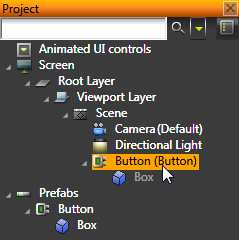
For example, create an animation that moves or scales the Box in the Button.
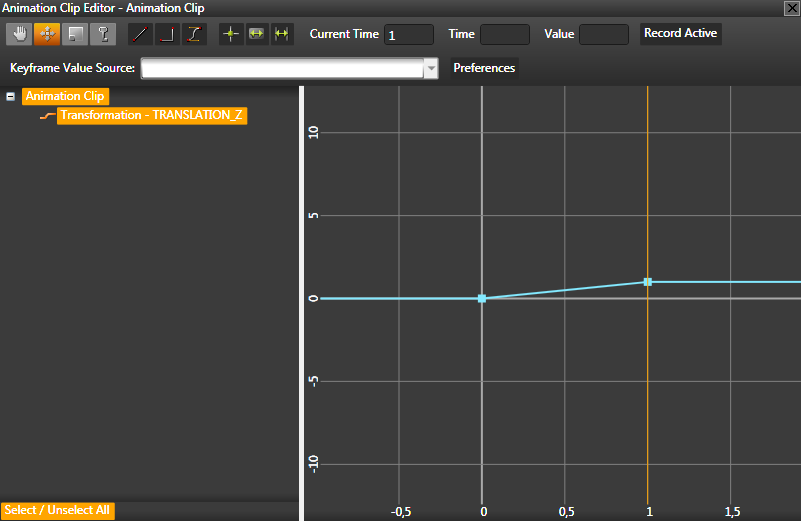
- In the Project select your UI control in the Prefabs.
For example, if you created a Button, select it.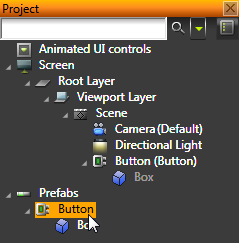
- In the Properties click the drop-down menu for the Click trigger and select Play Animation action.
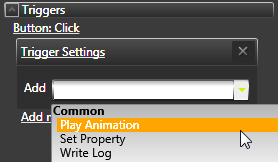
- In the Play Animation editor set:
- Target Item to the mesh inside the UI control.
For example, if you created a Box, use a relative path and enter./Box.
- Animation to the animation you want to use to animate your UI control when a user interacts with it.
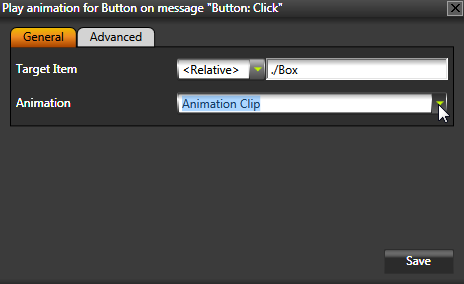
- Target Item to the mesh inside the UI control.
- Click the UI control in the Preview to try it out.
You can reuse this UI control anywhere in your Kanzi application.
Make sure that the Preview is in Play mode and that the Preview is not in the Edit mode. See Controlling your application in the Preview